How time tracking by location works
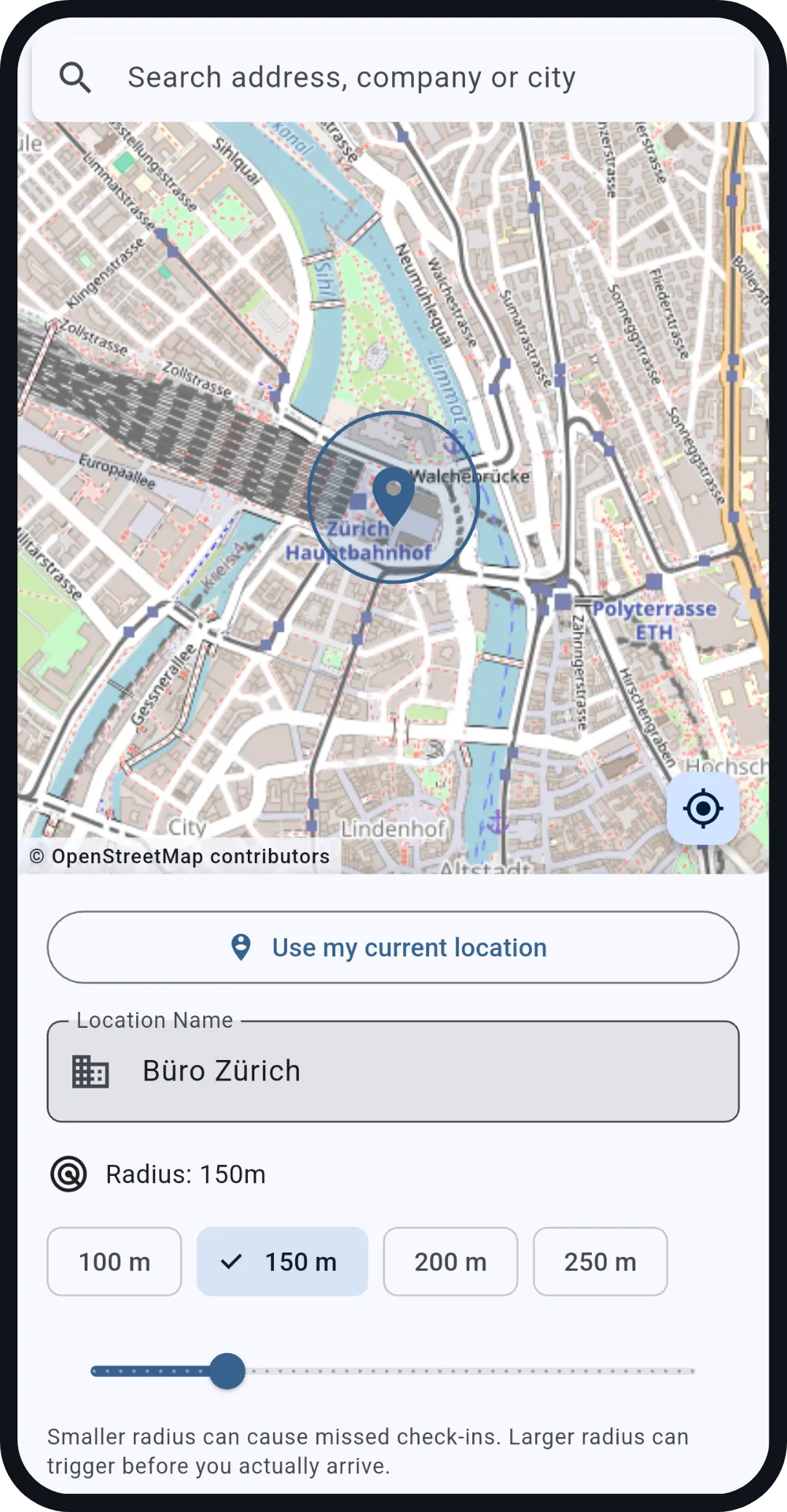
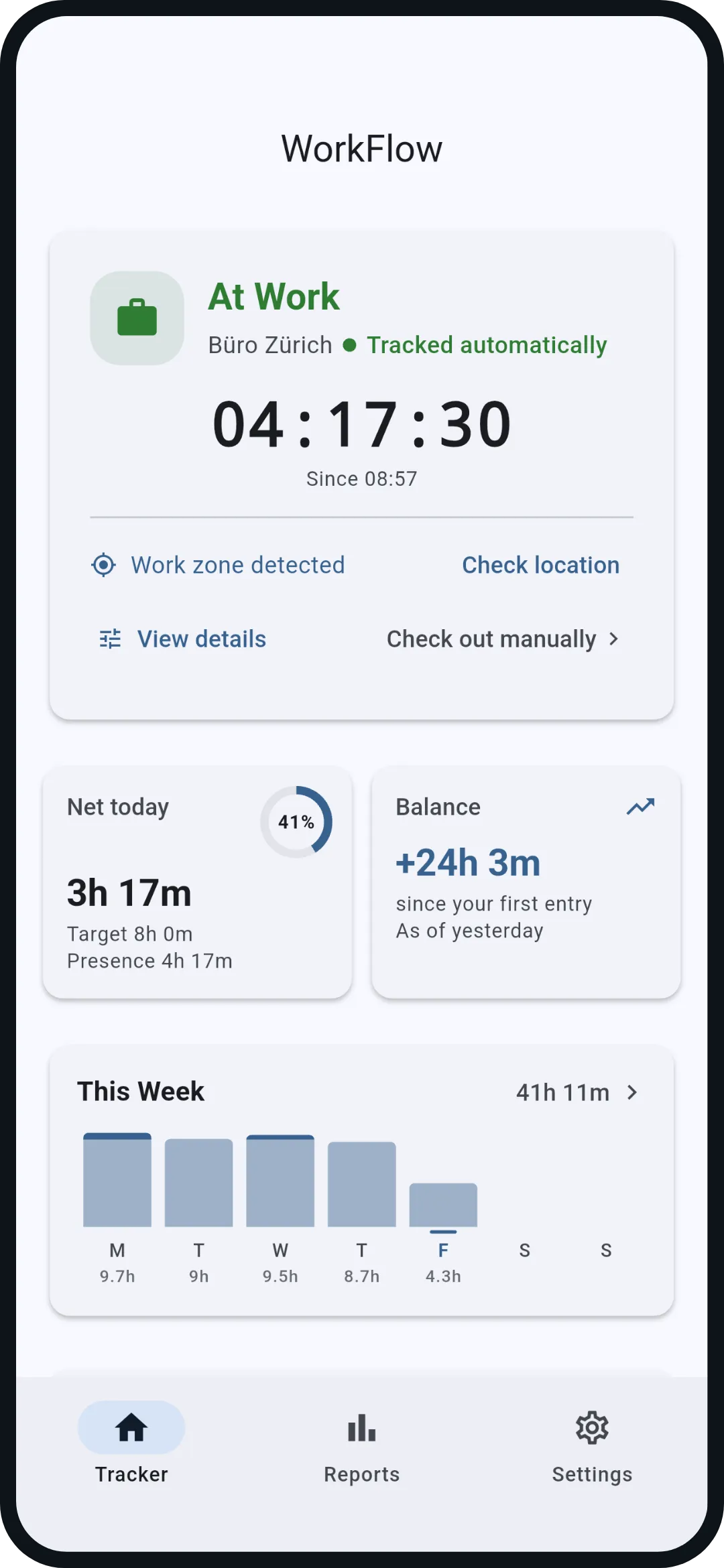
During setup WorkFlow hands your workplace and radius to Android's geofencing service. From then on the system watches, not the app: enter the circle and Android sends WorkFlow a report, and the app clocks you in. Leave it and the counterpart arrives, and it clocks you out. This works with the app closed and after a phone restart, because the report wakes the app.
As a second layer the app briefly checks every 15 minutes in the background whether a report got lost, for example because the phone was in power saving. That check is bounded: if no position arrives within 30 seconds it gives up and tries again next time. It uses the phone's last known position when it is fresh enough instead of requesting a new one.
Why the battery lasts
Android's geofencing is built for exactly this and combines cell towers, Wi-Fi and, when needed, GPS as sparingly as possible. Weather and reminder apps use the same technique. WorkFlow itself never keeps GPS switched on.
The 15-minute check runs through Android's WorkManager, which batches such jobs and defers them while the phone is idle. That is why it can be delayed by minutes; a late report shifts the recorded start or end accordingly, which is exactly why every day in the records list is editable.
Some manufacturers, above all Samsung and Xiaomi, still kill background services. WorkFlow detects that and shows you, under tracking details and in the settings, the steps to switch off battery optimisation for the app. It is a one-time setting.
What is stored, and what is not
Stored: the workplaces you created yourself and the times you arrived and left, from which the reports are built. Plus a short log of the last recognised events for the tracking details, so you can see what the app last saw.
Not stored: routes, coordinate histories, places outside the radius. The position Android delivers is only compared with your workplace and then discarded. None of it leaves the device, because WorkFlow has no server of its own. The only outbound connections are the map during setup, which fetches tiles and address searches from OpenStreetMap, and for WorkFlow Pro the purchase check through Google Play, which carries no locations or times.
What that becomes in the report →
Accuracy and limits
Positioning is as accurate as your phone. The default radius of 150 metres works best outdoors; inside buildings with poor reception the report can arrive a few minutes later. When leaving, WorkFlow uses a slightly larger radius than when arriving, so a wobbling position at the edge does not cause false clock-outs and clock-ins.
Before the app counts an arrival as the start of work it waits five minutes inside the radius. Driving past the office does not clock you in. Without Wi-Fi or mobile data, positioning is less accurate and Android delivers geofence reports less reliably. So glance at the records list at the end of the day; if something is off, you correct the day with two taps.
What the records list looks like →
You stay in control
Clock out manually when you leave early, without the app clocking you back in right away: WorkFlow remembers that until you have really left the place. Pause automation, clock fully manually, change the radius, delete a place: all inside the app, none of it hidden.
And the "allow location all the time" permission Android requires for geofencing can be revoked at any time. Then WorkFlow simply clocks manually only, without complaining.
How often does the app request my location?
Never continuously. Android reports arriving and leaving; additionally the app checks briefly every 15 minutes and gives up after 30 seconds if no position arrives.
Can anyone see where I am?
No. WorkFlow has no server of its own and no account. The position is compared with your workplace on the device and discarded; only the map during setup loads tiles from OpenStreetMap.
What if the report comes late?
Then you correct the time in the records list. Automatic and manual entries stay distinguishable, corrections are logged.
Is GPS time tracking allowed?
When you record your own working time on your own phone, nobody locates you but you: WorkFlow compares the position with your workplace on the device, keeps no route history and sends neither location nor times to a server. It is different when an employer locates its staff or requires such an app. That falls under the labour and data protection law of your country; clarify it at your workplace. This answer is not legal advice.
Do I need the Pro version for this?
No. Automatic clocking by location, manual clocking, the reports and the timesheet as PDF and CSV are free. WorkFlow Pro is an optional one-time purchase with extras such as the holiday import, Excel export and automatic backups.
 WorkFlow